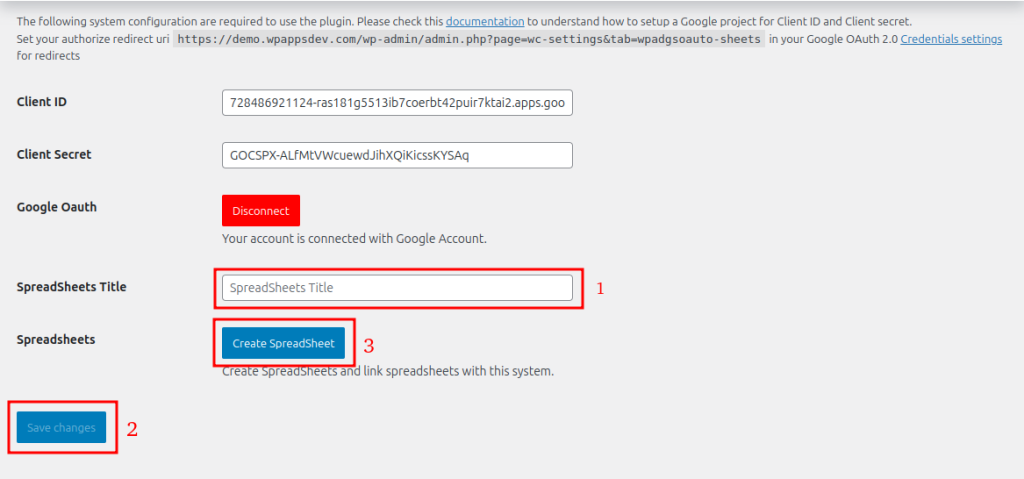
1. Proved a spreadsheet title and click Save changes. After that, click Create SpreadSheet.
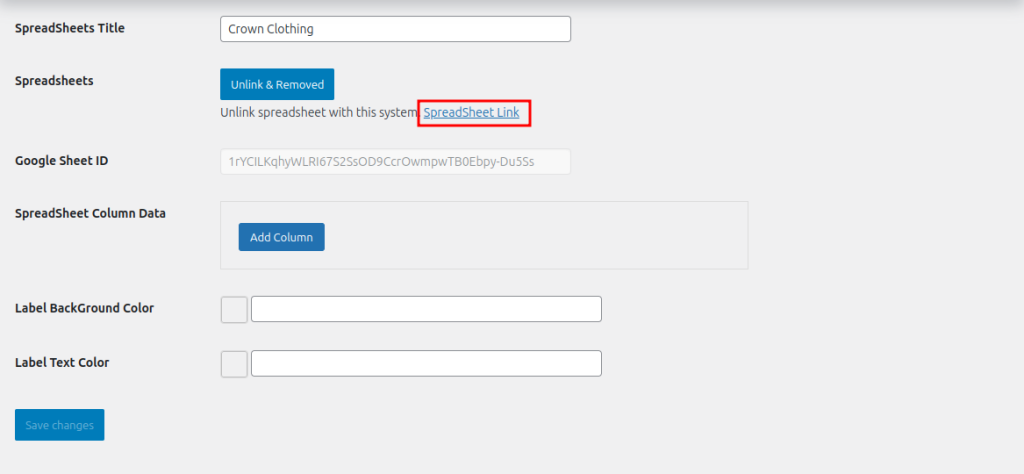
2. After the sheet is created some settings related to the Google sheet will appear. Click the SpreadSheet Link to check the created sheet.
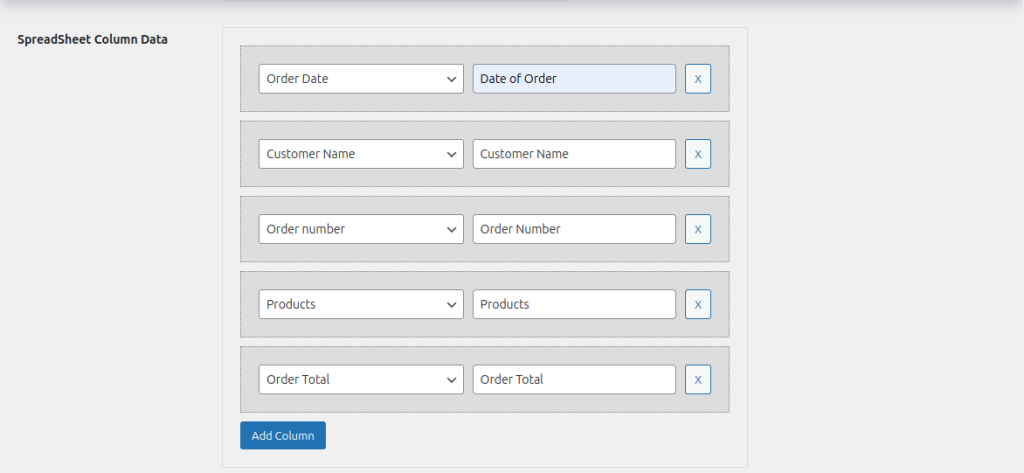
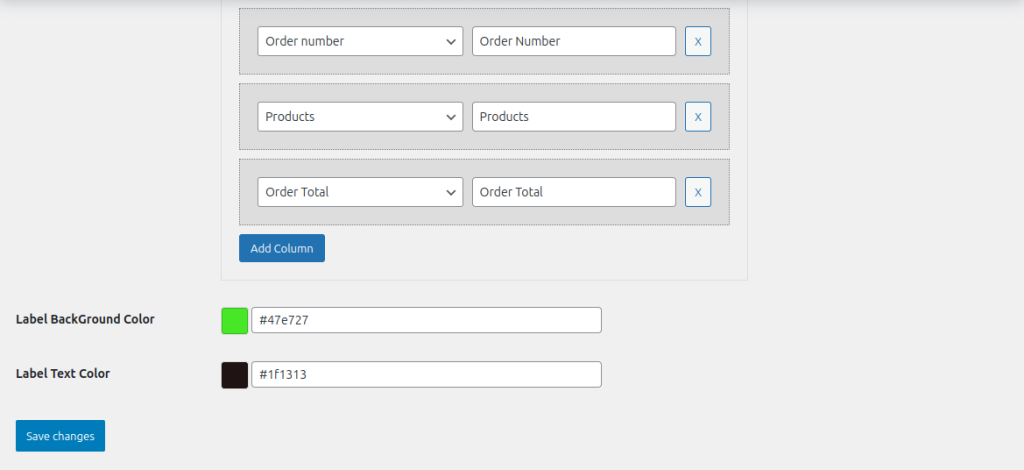
3. Add columns by providing the column name and the data you want to keep.
4. You can also add Label Background Color and Label Text Color. After that, click Save Changes. Click Set Spreadsheet Label after saving the changes.
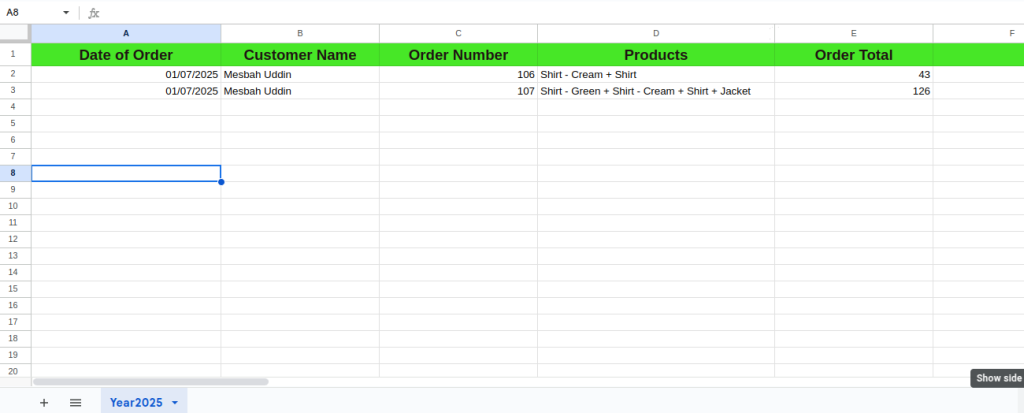
5. Now the attached spreadsheet should have the columns. When a new order is placed, it will be listed on the Google Sheet automatically.